 picoZ80 User Manual
picoZ80 User Manual
The
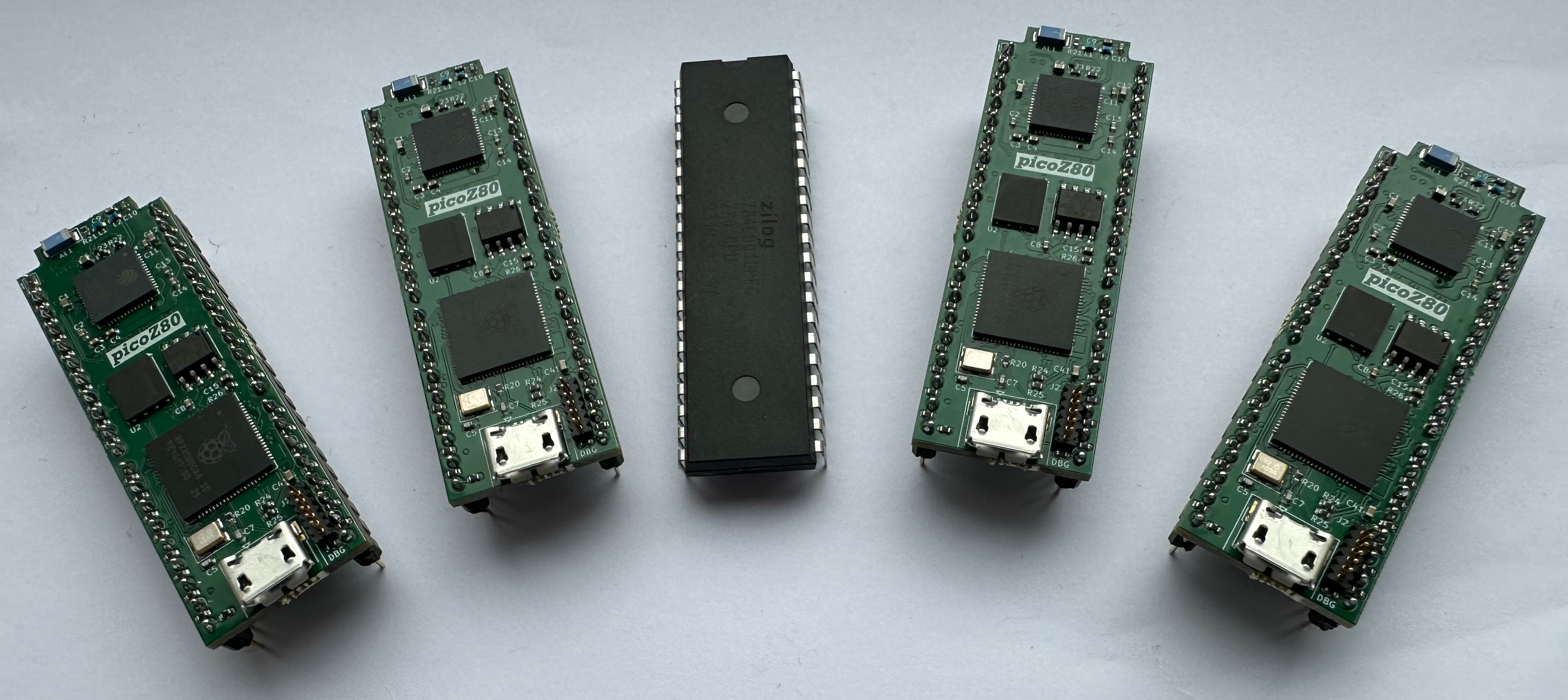
picoZ80 is a drop-in replacement for a Z80 CPU in any DIP-40 socketed computer. It plugs directly into the Z80 socket of your vintage computer and — without any modifications to the host board — provides expanded memory, virtual peripherals, floppy and QuickDisk emulation, filing systems, and a browser-based management interface over WiFi.
This manual covers the physical board, initial setup, connecting to a host machine, and using the web interface. For architecture details, configuration reference, and development information see the
picoZ80 Technical Guide.
Board Overview
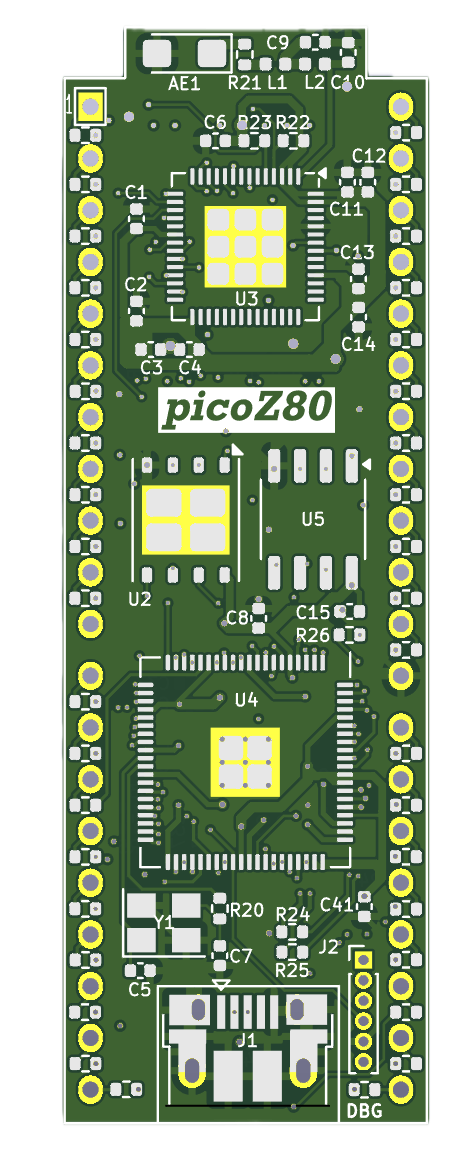
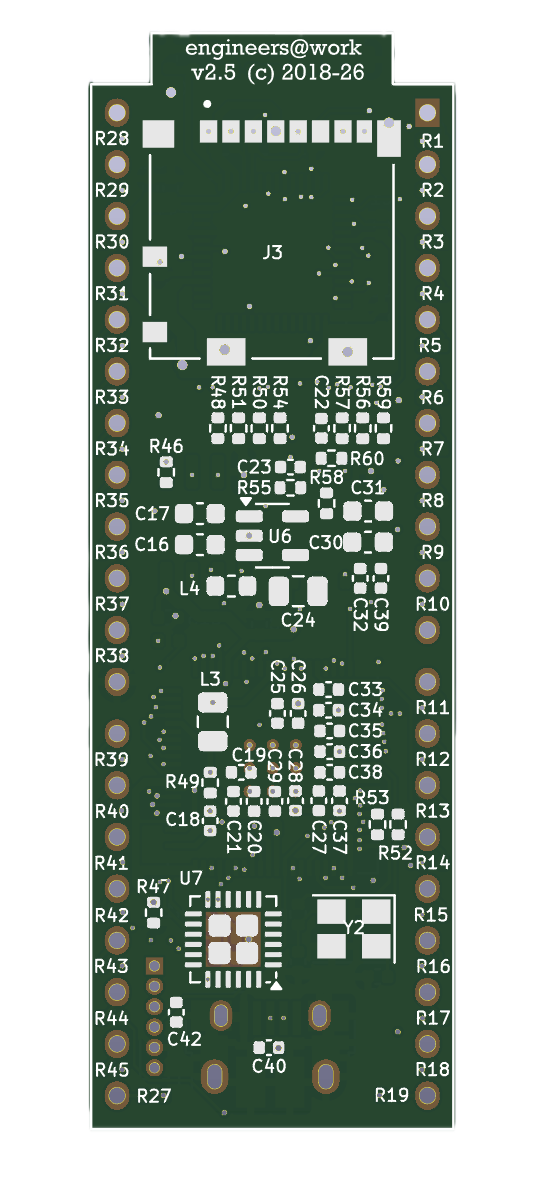
The picoZ80 PCB is designed to fit within the footprint of a standard 40-pin DIP package. All 40 DIP pins emerge from the underside of the board, exactly matching the pin-out of a real Z80, so it drops straight into any Z80 socket without bending or adapting.
The top surface of the board carries all active components. The board is narrower than most Z80 computers' internal clearances, and the height above the socket is within the envelope of a standard IC with a DIP-40 socket fitted underneath.
Connectors and Indicators
The picoZ80 board exposes the following connectors and indicators:
| Item |
Description |
| 6-pin Debug Header |
Located on the board edge. Provides SWD (Serial Wire Debug) access to the RP2350, BOOTSEL and Reset lines for initial flashing, and Reset for the ESP32. See Debug Header Pinout below. |
| USB Port (Mini-B) |
USB connectivity for firmware flashing via USB mass-storage (initial flash) and for USB-UART bridging to the ESP32. On board revisions v2.3a and later a second dedicated USB port for the ESP32 may also be present. |
| SD Card Slot |
Full-size SD card slot managed by the ESP32. Holds config.json, ROM images, disk images, and filing system trees. |
| LEDs |
Board revision dependent. See LEDs below. |
The 6-pin header is the primary hardware interface for initial programming and source-level debugging. The pins are numbered from Pin 1 at the end closest to the board edge marker.
| Pin |
Signal |
Function |
| 1 |
SWCLK |
Serial Wire Debug clock (ARM SWD) |
| 2 |
SWDIO |
Serial Wire Debug data (ARM SWD) |
| 3 |
Reset RP2350 |
Active-low reset for the RP2350. Pull low to reset the RP2350. |
| 4 |
Reset ESP32 |
Active-low reset for the ESP32. Pull low to hold ESP32 in reset. |
| 5 |
GND |
Ground reference |
| 6 |
BOOTSEL |
RP2350 boot mode select. Hold low during power-on/reset to enter USB mass-storage mode. |
NB. Pins 1, 2, and 5 are used for SWD debugging (SWCLK, SWDIO, GND). Pins 3 and 6 are used only for initial flashing. Pin 4 is used when you need to prevent the ESP32 from starting during RP2350 boot (e.g. during initial ESP32 firmware programming).
LEDs
The picoZ80 board includes one or more status LEDs depending on board revision. Typical LED behaviour is as follows:
| LED State |
Indication |
| Off |
Normal operation — no bus activity currently being processed. |
| Brief flash |
Z80 bus transaction serviced from PSRAM or virtual device. |
| Steady on |
Firmware loading from SD card, or boot in progress. |
| Rapid flash |
Error condition during boot — check SD card and config.json. |
Getting Started
Follow these steps in order the first time you set up a picoZ80 board:
- Flash the RP2350 bootloader via USB mass-storage mode (BOOTSEL).
- Flash the ESP32 firmware via
esptool.
- Prepare an SD card with
config.json and any required ROM/disk images.
- Install the picoZ80 in the Z80 socket of your host computer.
- Power on, connect to the picoZ80 web interface, and configure as required.
Step 1 — Flash the RP2350 Bootloader
The RP2350 does not have physical BOOTSEL or Reset buttons. Both signals are available on the 6-pin debug header. To enter the USB mass-storage bootloader:
- Do not insert the picoZ80 into a host computer yet — connect it to a PC by USB cable only.
- Using a jumper or probe, hold Pin 6 (BOOTSEL) low.
- Apply power to the USB port — the RP2350 starts booting.
- Release BOOTSEL promptly after the board enumerates as a USB mass-storage device. (If you hold BOOTSEL too long after reset the RP2350 cannot access the Flash chip.)
- The PC will mount a drive labelled RPI-RP2 (or similar).
- Copy
Bootloader_<version>.uf2 to the mounted drive. The RP2350 self-flashes and reboots automatically.
After flashing the bootloader, all subsequent RP2350 firmware updates can be performed wirelessly via the web OTA page — you do not need to touch the debug header again for normal firmware updates.
Step 2 — Flash the ESP32 Firmware
The ESP32 firmware is flashed using
esptool. On board revisions v2.3a and later, the ESP32 has its own USB port and appears independently on the host PC. On earlier revisions (v2.0 – v2.2), the ESP32 is accessed through the RP2350 acting as a USB-UART bridge.
Set up the Python environment (once only):
python3 -m venv ./venv/
source ./venv/bin/activate
cd $HOME/esptool
Then flash all four ESP32 firmware components. Adjust PORT to the device node assigned by your OS:
PORT=/dev/ttyUSB0       # Linux — adjust as required
# PORT=/dev/tty.usbmodem141403  # macOS

BINPATH=/path/to/esp32/build

python3 ./esptool.py \
  -p ${PORT} -b 115200 \
  --before default_reset --after hard_reset \
  --chip esp32s3 \
  write_flash \
  --flash_mode dio --flash_size 4MB --flash_freq 80m \
  0x0     ${BINPATH}/bootloader.bin \
  0x8000  ${BINPATH}/partition-table.bin \
  0x9000  ${BINPATH}/ota_data_initial.bin \
  0x10000 ${BINPATH}/sd_card.bin
NB. All subsequent ESP32 firmware updates can be performed via the OTA web page (ota-esp32.htm) once the initial flash is complete.
Step 3 — Prepare the SD Card
The SD card is the primary storage medium for the picoZ80. It holds the configuration file, ROM images, disk images, and filing system directories.
Format requirements:
- FAT32 file system.
- Any capacity supported by FAT32 (typically up to 32GB is recommended for reliable formatting).
Minimum required files:
config.json in the SD card root — the main configuration file. See Basic Configuration for a minimal example.webfs/ directory — the ESP32 web interface assets. Copy the contents of the webfs/ directory from the project repository to the SD card root.
Optional but recommended directories:
| Directory |
Contents |
MZF/ |
MZF format program files for loading via the filing system |
ROM/ |
ROM images referenced by config.json |
DSK/ |
Floppy disk images (DSK format) for WD1773 emulation |
QD/ |
QuickDisk images for QuickDisk emulation |
TZFS/ |
TranZPUter Filing System trees |
RFS/ |
ROM Filing System program trees |
The SD card can be managed entirely through the web File Manager once the picoZ80 is running — you can upload ROM images, edit `config.json`, and create directories from the browser without physically removing the card.
Step 4 — Install in the Host Computer
Safety first: Always power off and unplug the host computer before installing or removing the picoZ80. The board operates at 3.3V internally; the DIP-40 pins connect to the 5V host bus through appropriate interface circuitry, but the board must never be inserted or removed while powered.
Installation procedure:
- Power off the host computer and discharge any static.
- Remove the existing Z80 CPU chip from its DIP-40 socket. A chip extractor tool is recommended to avoid bending pins.
- Insert the SD card into the picoZ80 SD card slot.
- Align the picoZ80 with the Z80 socket, ensuring that Pin 1 of the picoZ80 (marked with a dot or notch) aligns with Pin 1 of the socket (also marked, and typically adjacent to the notch on the IC outline silkscreen).
- Press the picoZ80 gently and evenly into the socket. Ensure all 40 pins are seated. Do not force — if resistance is felt, remove and check pin alignment.
- Power on the host computer.
On first power-on after a fresh firmware install, the ESP32 will start in
Access Point mode, broadcasting a WiFi network named
picoZ80. Connect to this network to access the web interface and complete initial WiFi configuration.
NB. The picoZ80 draws power from the 5V supply on the Z80 socket VCC pin. The on-board buck converter delivers 3.3V to all board components. Ensure your host computer's 5V supply can deliver at least 500mA — the picoZ80 can draw up to 400mA under peak load (RP2350 at 300MHz with WiFi active).
WiFi Setup
The picoZ80 ESP32 co-processor provides WiFi connectivity. On first boot (or when no WiFi credentials have been saved) the ESP32 starts in Access Point (AP) mode so that you can connect to it from any device with a browser and configure your home network settings.
Connecting in Access Point Mode
- On your phone, tablet, or laptop, open the WiFi settings and look for a network named picoZ80 (or as configured in the
esp32.wifi.ssid field of your config.json when in AP mode).
- Connect to the picoZ80 network. The default AP password is picoZ80AP (check your firmware release notes if this has changed).
- Open a browser and navigate to http://192.168.4.1 — this is the default AP mode IP address. The picoZ80 web interface will appear.
- Navigate to the WiFi Manager page to enter your home network SSID and password.
- Click Save & Connect. The ESP32 will reboot and connect to your home network as a client.
Client (Station) Mode
Once configured for client mode, the ESP32 joins your home WiFi network and is reachable at the IP address shown on the Dashboard page. If you set a fixed IP in `config.json` (recommended for ease of access), navigate directly to:
http://192.168.1.192
Substitute the IP address you configured. If you are using DHCP, find the assigned address from your router's DHCP client list.
The web interface runs entirely in your browser. No additional software is required. The picoZ80 web server runs on port 80.
Web Interface
The picoZ80 web interface is a seven-page Bootstrap 4 application served by the ESP32. All pages are accessible from the navigation bar at the top of each page. The web assets are stored in the webfs/ directory on the SD card and can be updated independently of the firmware.
Dashboard (index.htm)
The Dashboard is the home page of the web interface. It displays real-time system information and provides a quick overview of the picoZ80 state.
Information shown on the Dashboard includes:
- Firmware Version — the currently running RP2350 firmware version and build date.
- ESP32 Version — the ESP32 co-processor firmware version.
- Active Partition — which of the two firmware slots (1 or 2) is currently active.
- Active Persona — the machine personality currently loaded (e.g. MZ-700, MZ-80A).
- RP2350 Clock — current CPU frequency in MHz.
- PSRAM Clock — current PSRAM SPI clock frequency.
- WiFi Status — mode (AP or client), SSID, and assigned IP address.
- SD Card — whether an SD card is present and the filesystem mount status.
- Uptime — time since last reboot.
The Dashboard also provides buttons to reboot the RP2350 and to trigger a configuration reload from the SD card without a full reboot.
Config Editor (config.htm)
The Config Editor page provides an in-browser editor for the
config.json file stored on the SD card. The editor features syntax highlighting and basic JSON validation.
To edit the configuration:
- Navigate to the Config Editor page.
- The current
config.json is loaded into the editor automatically.
- Make your changes. The editor will highlight syntax errors in red.
- Click Save to write the updated file back to the SD card.
- Click Apply (or reboot) to apply the new configuration. The RP2350 reads the config at boot, minifies it, and stores it in Flash — subsequent boots use the Flash copy if no SD card is present.
Changes to the memory map, ROM images, and I/O map take effect on the next RP2350 reset. Changes to WiFi settings in the
esp32.wifi block take effect on the next ESP32 reboot.
NB. The Config Editor operates directly on the SD card file. It is good practice to keep a backup copy of a working config.json on your PC before making significant changes.
File Manager (filemanager.htm)
The File Manager provides a browser-based view of the SD card contents. You can navigate directories, upload new files (ROM images, disk images, MZF program files), download existing files to your PC, create new directories, and delete files and directories.
Common tasks in the File Manager:
- Upload a ROM image — navigate to the
ROM/ directory and use the Upload button to transfer the ROM file from your PC.
- Upload a disk image — navigate to
DSK/ (floppy) or QD/ (QuickDisk) and upload the image file.
- Upload MZF programs — navigate to
MZF/ or the relevant filing system directory and upload your MZF files.
- Backup config.json — click the download icon next to
config.json to save a copy to your PC.
File operations are performed directly on the SD card via the ESP32. Large file uploads may take a few seconds depending on file size and WiFi signal quality.
Persona Selection (personality.htm)
The Persona Selection page allows you to choose which machine personality (persona) the picoZ80 presents to the host computer. Different personas load different memory maps, ROM images, and virtual driver bindings from the configuration.
Currently supported Sharp MZ personas:
- MZ-700 — full MZ-700 persona with bank switching, virtual video, keyboard I/O, WD1773 floppy emulation, QuickDisk emulation, and ROM Filing System. Includes CP/M v2.23 (48K), SA-1510 BASIC, and Microsoft BASIC v4.7, all with SD card read/write access.
- MZ-80A — MZ-80A persona (in development).
- MZ-80B — MZ-80B persona (in development).
- MZ-800 — MZ-800 persona (in development).
Switching persona changes the active memory map and loaded ROM images without rebooting the host. The picoZ80 reinitialises its memory banking to the new persona's configuration and the host sees the new memory layout on the next Z80 bus transaction.
Firmware Updates (OTA)
Firmware for both the RP2350 and the ESP32 can be updated over-the-air (OTA) from the web interface without any physical access to the debug header.
RP2350 OTA Update (ota-rp2350.htm)
- Build the RP2350 firmware using the build scripts — the output binary will be in
fw/bin/ with a version-stamped filename (e.g. BaseZ80_v3.009.bin).
- Navigate to http://<device-ip>/ota-rp2350.htm.
- Select which partition slot to update (Slot 1 or Slot 2). The currently active slot is shown on the Dashboard — it is good practice to update the inactive slot so that the existing firmware remains available if the update fails.
- Click Choose File, select the
.bin file, then click Upload.
- Wait for the upload and verification to complete. The page will confirm success and show the new partition as available.
- To activate the new firmware, navigate to the partition selection section of the same page, choose the newly updated slot, and click Set Active & Reboot. The RP2350 reboots into the new firmware.
Application partitions use pure binary format (not UF2) because they reside at non-standard flash addresses. The bootloader verifies the image checksum before activating the new partition — if verification fails, the existing active slot remains in use.
ESP32 OTA Update (ota-esp32.htm)
- Build the ESP32 firmware — the output binary is
esp32/build/tzpuPico_esp32.bin.
- Navigate to http://<device-ip>/ota-esp32.htm.
- Click Choose File, select the
.bin file, then click Upload.
- The ESP32 reboots automatically into the new firmware after a successful upload.
The OTA page also accepts a
FilePack archive to update the web interface assets stored in the
webfs/ directory on the SD card. This allows the web UI to be updated independently of the ESP32 firmware binary.
WiFi Manager (wifimanager.htm)
The WiFi Manager page configures the ESP32 network settings. Changes made here are persisted in the ESP32 NVS (non-volatile storage) and take effect on the next reboot.
Available settings:
- WiFi Mode — Access Point (the picoZ80 creates its own network) or Client (the picoZ80 joins an existing network).
- SSID — the network name to create (AP mode) or join (client mode).
- Password — the WiFi passphrase.
- IP Address / Netmask / Gateway — fixed IP settings for client mode (recommended for consistent access).
- DHCP — enable to obtain an address from your router automatically; disable to use the fixed IP settings above.
After saving, click
Reboot ESP32 to apply the new settings. The ESP32 will restart and connect using the new configuration. If client mode connection fails (wrong SSID or password), the ESP32 will fall back to Access Point mode after a timeout, allowing you to reconnect and correct the settings.
Basic Configuration
All picoZ80 behaviour is controlled by
config.json on the SD card. The following is a minimal working configuration for a Sharp MZ-700. Refer to the
Technical Guide — Configuration Reference for a full description of all options.
{
  "esp32": {
    "core": {
      "device": "Z80",
      "mode":   0
    },
    "wifi": {
      "override":  1,
      "wifimode":  "client",
      "ssid":      "YourNetwork",
      "password":  "YourPassword",
      "ip":        "192.168.1.192",
      "netmask":   "255.255.255.0",
      "gateway":   "192.168.1.1",
      "dhcp":      0,
      "webfs":     "webfs",
      "persist":   0
    }
  },
  "rp2350": {
    "core": {
      "cpufreq":   300000000,
      "psramfreq": 133000000,
      "voltage":   1.10
    },
    "z80": [
      {
        "memory": [
          {
            "enable":   1,
            "addr":     "0x0000",
            "size":     "0x1000",
            "type":     "ROM",
            "bank":     0,
            "tcycwait": 0,
            "tcycsync": 0,
            "task":     "",
            "file":     "/ROM/mz700.rom",
            "fileofs":  0
          },
          {
            "enable":   1,
            "addr":     "0x1000",
            "size":     "0xCFFF",
            "type":     "RAM",
            "bank":     0,
            "tcycwait": 0,
            "tcycsync": 0,
            "task":     "",
            "file":     "",
            "fileofs":  0
          },
          {
            "enable":   1,
            "addr":     "0xD000",
            "size":     "0x3000",
            "type":     "PHYSICAL_VRAM",
            "bank":     0,
            "tcycwait": 2,
            "tcycsync": 1,
            "task":     "",
            "file":     "",
            "fileofs":  0
          }
        ],
        "io":      [],
        "drivers": []
      }
    ]
  }
}
This example maps:
0x0000 – 0x0FFF — 4KB ROM loaded from /ROM/mz700.rom on the SD card into PSRAM bank 0.0x1000 – 0xCFFF — 48KB RAM in PSRAM bank 0 (read/write, zero wait states).0xD000 – 0xFFFF — 12KB passed through to the physical host hardware (VRAM and I/O registers), with 2 wait states and T1 synchronisation enabled.
Troubleshooting
Host computer does not boot
- Check orientation — ensure Pin 1 of the picoZ80 aligns with Pin 1 of the socket. Inserting the board backwards will damage both the picoZ80 and the host computer.
- Check seating — remove the picoZ80 and reinsert, ensuring all 40 pins are fully seated and none are bent under the board.
- Check the SD card — if
config.json is missing or malformed the firmware will attempt to use the previously cached Flash configuration. If no valid config exists the RP2350 will not initialise the memory map and the host will see an open bus.
- Confirm firmware is flashed — try connecting the picoZ80 via USB (without inserting in the host) and verify the board enumerates on the PC.
- Check host power supply — the picoZ80 can draw up to 400mA from the 5V rail. Some vintage computers have marginal power supplies; check the 5V rail voltage under load with a multimeter.
Cannot connect to the web interface
- Check WiFi mode — on first boot or after a factory reset the ESP32 starts in AP mode. Connect to the
picoZ80 WiFi network first, then navigate to http://192.168.4.1.
- Check configured IP address — if client mode is configured with a fixed IP, verify the IP matches your network subnet.
- Check the SD card is present — the web assets in
webfs/ on the SD card are required. Without the SD card the web server cannot serve any pages.
- Check the webfs directory — confirm the
webfs/ directory exists on the SD card and contains the HTML/CSS/JS files from the project repository.
- Factory reset WiFi — if credentials are lost, re-flash the ESP32 firmware to clear NVS settings and start fresh.
SD card not recognised
- Ensure the SD card is formatted as FAT32. NTFS, exFAT, and FAT16 are not supported.
- Try a different SD card — some high-capacity or high-speed cards can have compatibility issues with the ESP32 SPI SD interface.
- Cards up to 32GB are well supported. Very large cards (>32GB) may require special formatting.
- Re-seat the SD card — remove and reinsert to ensure good contact.
ROM images not loading
- Verify the file path in
config.json exactly matches the file location on the SD card (paths are case-sensitive).
- Confirm the ROM image file is present on the SD card — use the File Manager to browse to the expected location.
- Check the
fileofs value — an incorrect offset will load garbage data into the ROM bank.
- Verify the
size field in the memory map entry is not larger than the ROM image file. Oversized mappings will pad with undefined data.
OTA update fails
- Ensure you are uploading a
.bin file (not a .uf2) for RP2350 OTA updates.
- Ensure you are uploading to the inactive slot to preserve the working firmware.
- If the OTA update fails or results in a non-booting partition, the bootloader will keep the previous active slot running — repeat the upload process.
- For ESP32 OTA failures, re-flash via
esptool using the debug header USB connection.
Reference Sites